Tutorial 4 : Build a Petri net language with the FreeModellingEditor
Most modelling languages are built one layer at a time, with a different tool for each layer: a notation, a metamodel, an editor, then some code that gives the models a meaning. In this tutorial you build all of them, end to end, in Openflexo. You start from an informal drawing and finish with a domain-specific language (DSL) for Petri nets, with its graphical editor and its execution, animated in that same editor.
- Sketch. Draw a first Petri net with plain shapes (steps 3 to 5 and 7 to 9).
- Metamodel. Turn the shapes into concepts, properties and relations, then refactor them (steps 6 to 13).
- Graphical editor. Each concept gets its own representation and its palette entry, built along the way.
- Instantiation. Drop concepts from the palette to edit new Petri nets (step 14).
- Semantics. Write in FML what it means to fire a transition (steps 15 and 16).
- Execution. Fire transitions from the diagram (step 18).
- Animation. Show tokens and weights on the diagram while it runs (steps 17 and 18).
Nothing here needs code until the semantics step. The first fourteen steps are done with the mouse: you draw, and the editor writes the model for you. Then you open the model, read the FML it produced, and add the behaviour by hand.
What you will have at the end
- a conceptual model of Petri nets: places, transitions, and input and output edges with a weight;
- a graphical editor for it, with a palette, inspectors and example diagrams;
- an execution engine: a transition fires when its input places hold enough tokens;
- the finished project,
PetriNet.prj, to compare with yours, in thetutorials-rcmodule of openflexo-integration-tests.
About Petri nets
A Petri net, also known as a place/transition (PT) net, is one of several mathematical modeling languages for the description of distributed systems. It is a class of discrete event dynamic system. A Petri net is a directed bipartite graph, in which the nodes represent transitions (i.e. events that may occur, represented by bars) and places (i.e. conditions, represented by circles). The directed arcs describe which places are pre- and/or post-conditions for which transitions (signified by arrows). Some sources state that Petri nets were invented in August 1939 by Carl Adam Petri, at the age of 13, for the purpose of describing chemical processes. See Petri net on Wikipedia for more.

A Petri net with four places (P1 to P4), two transitions (T1 and T2) and tokens, drawn as dots in the places.
The tokens in the places give the state of the net. A transition can fire when each of its input places holds enough tokens. Firing it removes tokens from its input places and adds tokens to its output places. This rule, and the graphical editor to draw such nets, are what you build in this tutorial.
Before you start
Install an Openflexo 2.99 distribution from the download page. Nothing else is required.
1. Create the project
Launch Openflexo Designer. The welcome panel lists the available modules. Select FreeModellingEditor, then click New project.
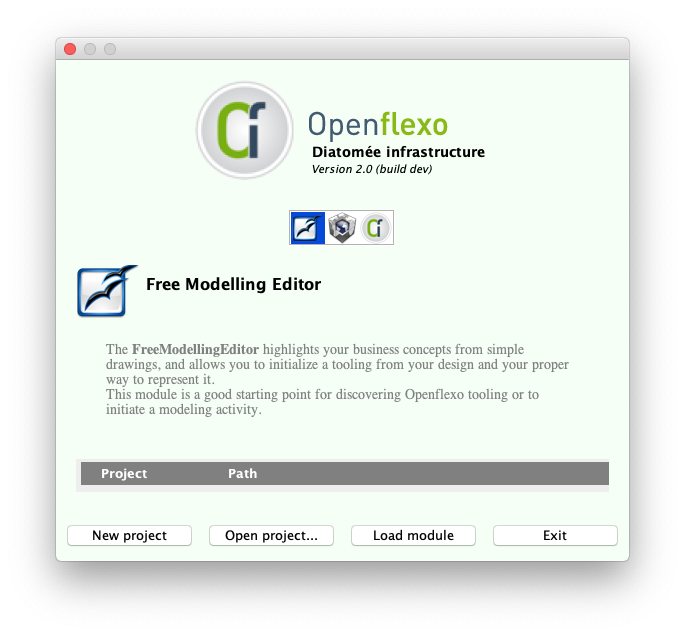
The welcome panel, with the Free Modelling Editor module selected.
Choose any directory and create a project named PetriNet. In the wizard, set:
- Project name:
PetriNet - Project uri:
http://www.openflexo.org/test/PetriNet.prj

The Create openflexo project wizard.
Click Finish. The project opens in the module.
2. Give the project the Free Modelling nature
The project exists, but it is still a plain Openflexo project. Click Gives your project the "Free Modelling" nature.
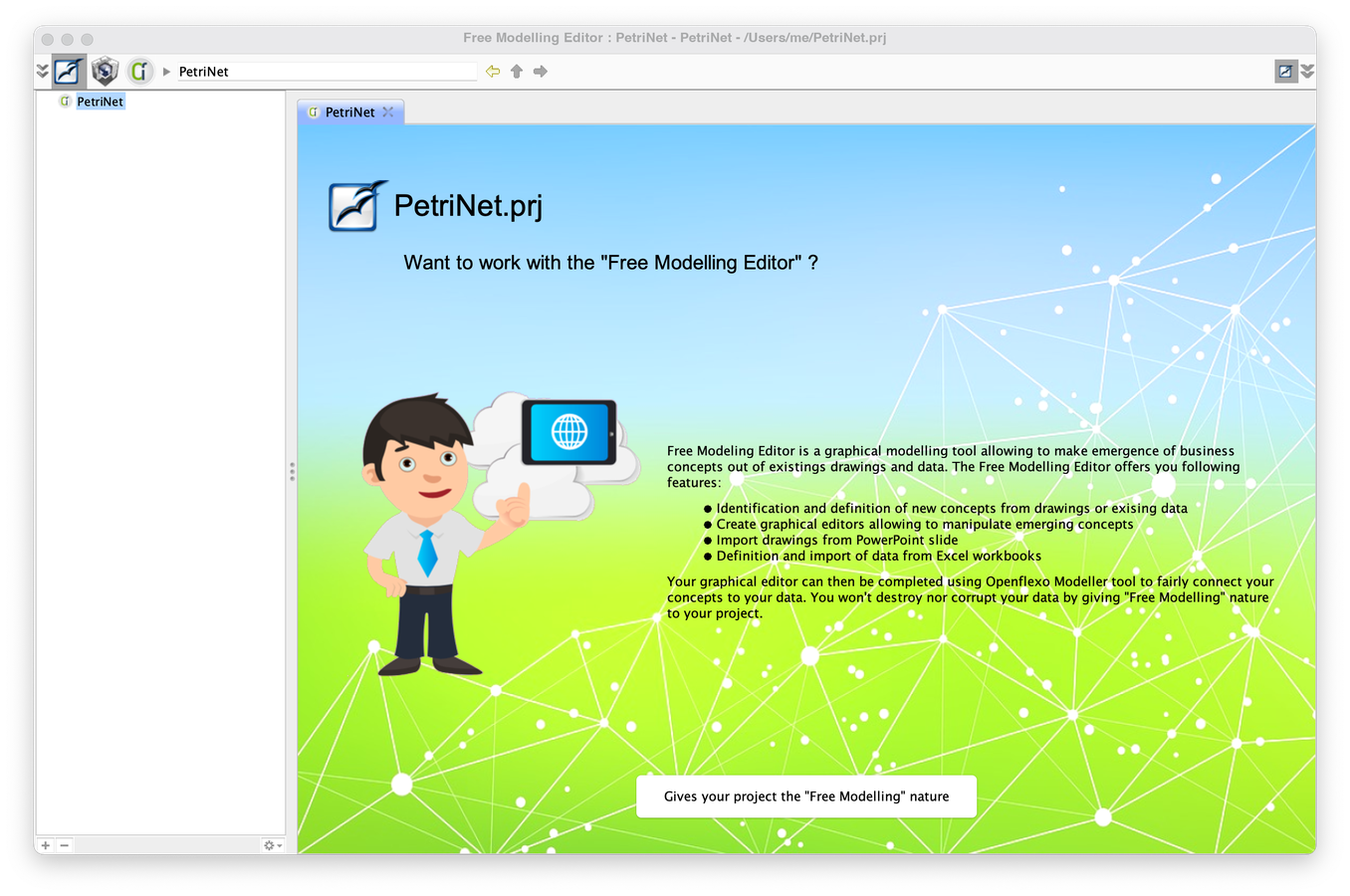
The project page before it has the nature.
A two-step wizard opens.
Step 1 of 2: the conceptual model
This is the model that will hold the Petri net concepts. Keep CreateNewVirtualModel and name it PetriNet. Click Next.

Step 1: the conceptual model to feed.
Step 2 of 2: the sample data
The sample data are instances of the conceptual model. You will create them from a first example. Keep CreateNewVirtualModelInstance and name it MyPetriNet. Click Finish.

Step 2: the sample data.
You are now editing a new conceptual model, PetriNet, whose instances you will create from a first example, MyPetriNet. The project browser shows both resources:
PetriNet
├─ PetriNet.fml  conceptual model
└─ MyPetriNet.fml.rt  sample data
3. Create a diagram
The project page now lists the conceptual model, the sample data and the free models, with three ways to start: New diagram, Import ppt slide and Import excel. Select New diagram.
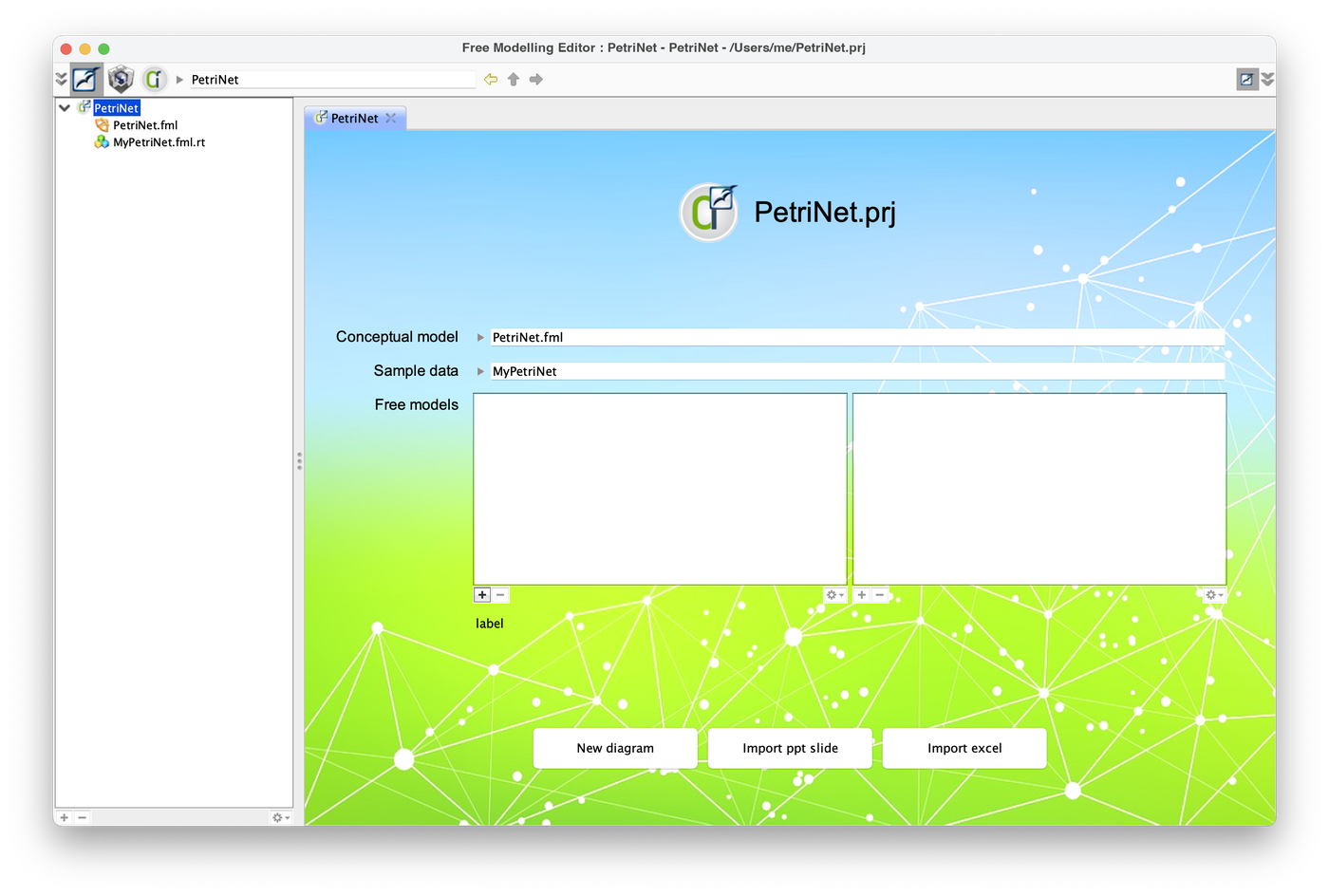
The project page after the wizard.
Name the free model FreeModel and click Finish.

The free model wizard.
4. Find your way around the editor
The Free Modelling Editor opens on a blank diagram named Example. The window has six areas.
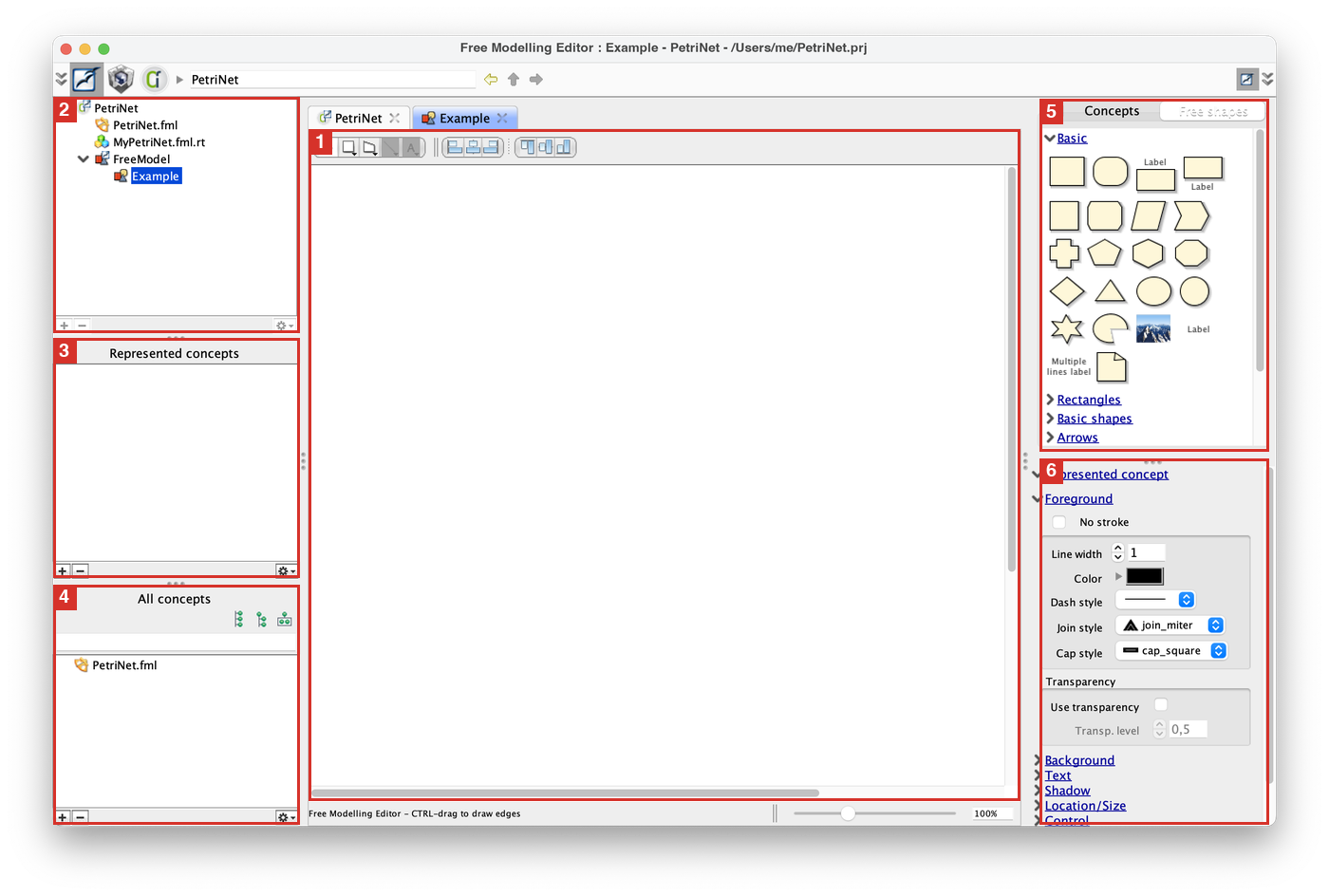
The editor on the blank Example diagram. The red frames match the list below.
- Diagram. The central window, where you draw.
- Main browser. The project and its resources.
- Represented concepts. The concepts shown in this diagram, with their instances.
- All concepts. The model, or metamodel, you are building.
- Palettes. Represented concepts, available concepts and free shapes, used to edit the diagram.
- Inspectors. Conceptual and graphical properties of the selection.
5. Draw the first place
A Petri net has places, drawn as circles, and transitions, drawn as bars. Start with a place: drag a circle from the palette and drop it on the diagram.
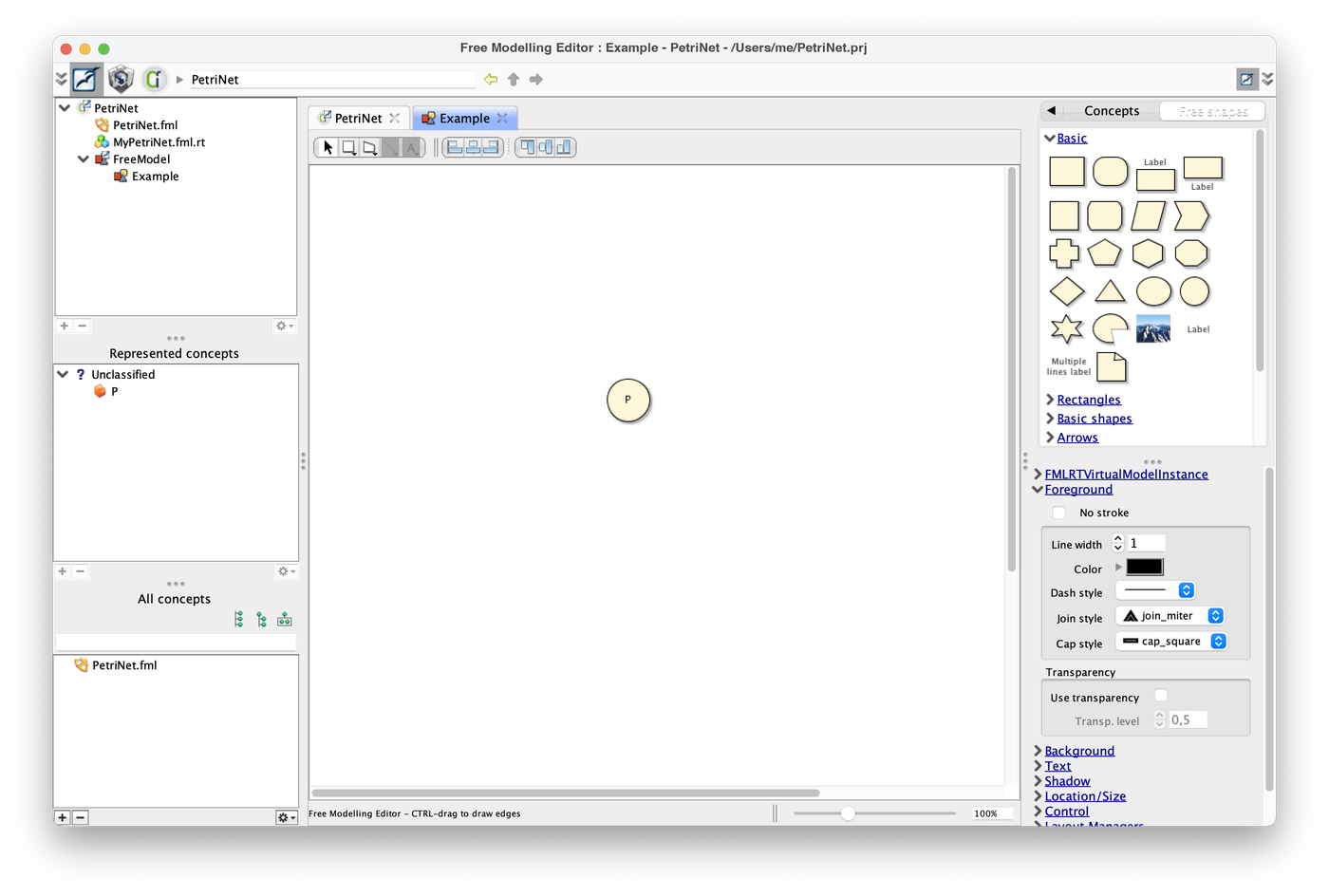
A circle dropped on the diagram. Double-click its label to rename it.
Double-click the label unnamed and change it to P. Then change the background colour in the Background inspector.
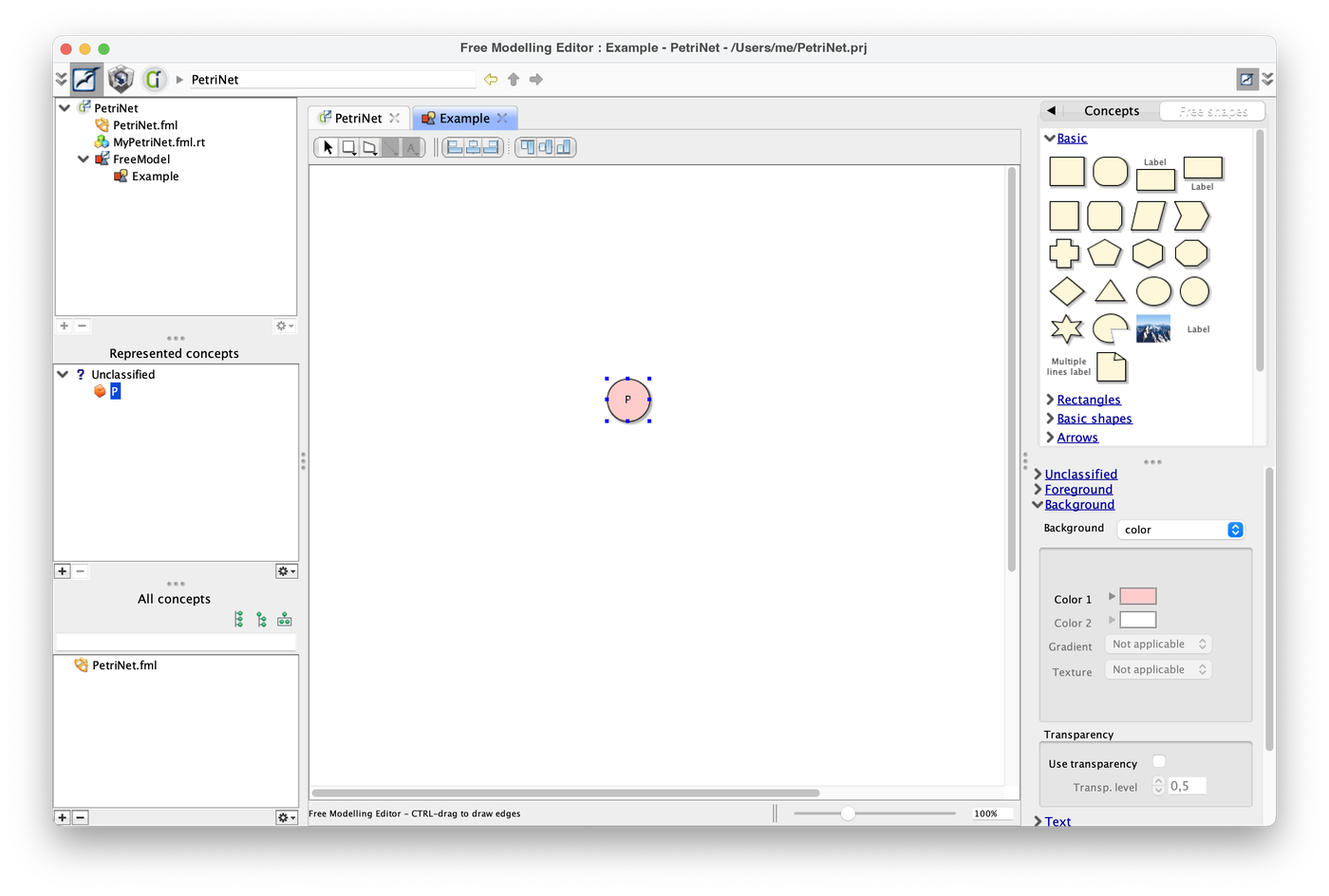
The place with its new background colour. In Represented concepts, P is still Unclassified.
6. Turn the shape into a concept
So far P is only a drawing. To give it a meaning, make a concept out of it: select the shape P, right-click and choose Create new concept.
Name the concept Place and give it a description, for example Represent a place in a Petri Net. Click Finish.

The Create new concept wizard.
The shape is no longer Unclassified: it is now an instance of the new concept Place. The concept has a property name, whose value is P for this instance.
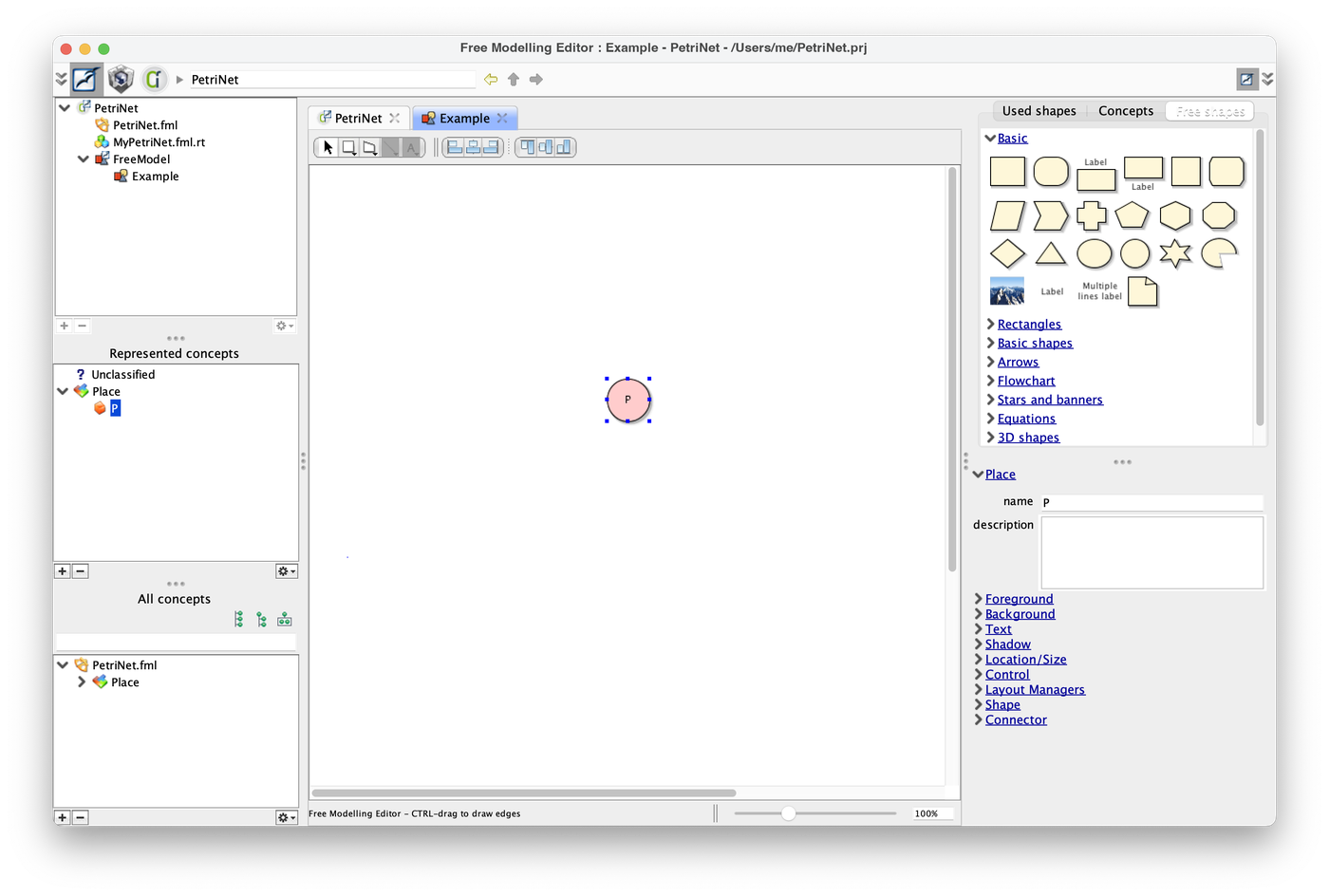
P is an instance of Place, listed under the concept in Represented concepts. The concept appears in All concepts.
7. Draw a transition
Now add a shape for the transition. Choose a rectangle with a label above it, fill it in black, remove its shadow, and label it t (for transition).
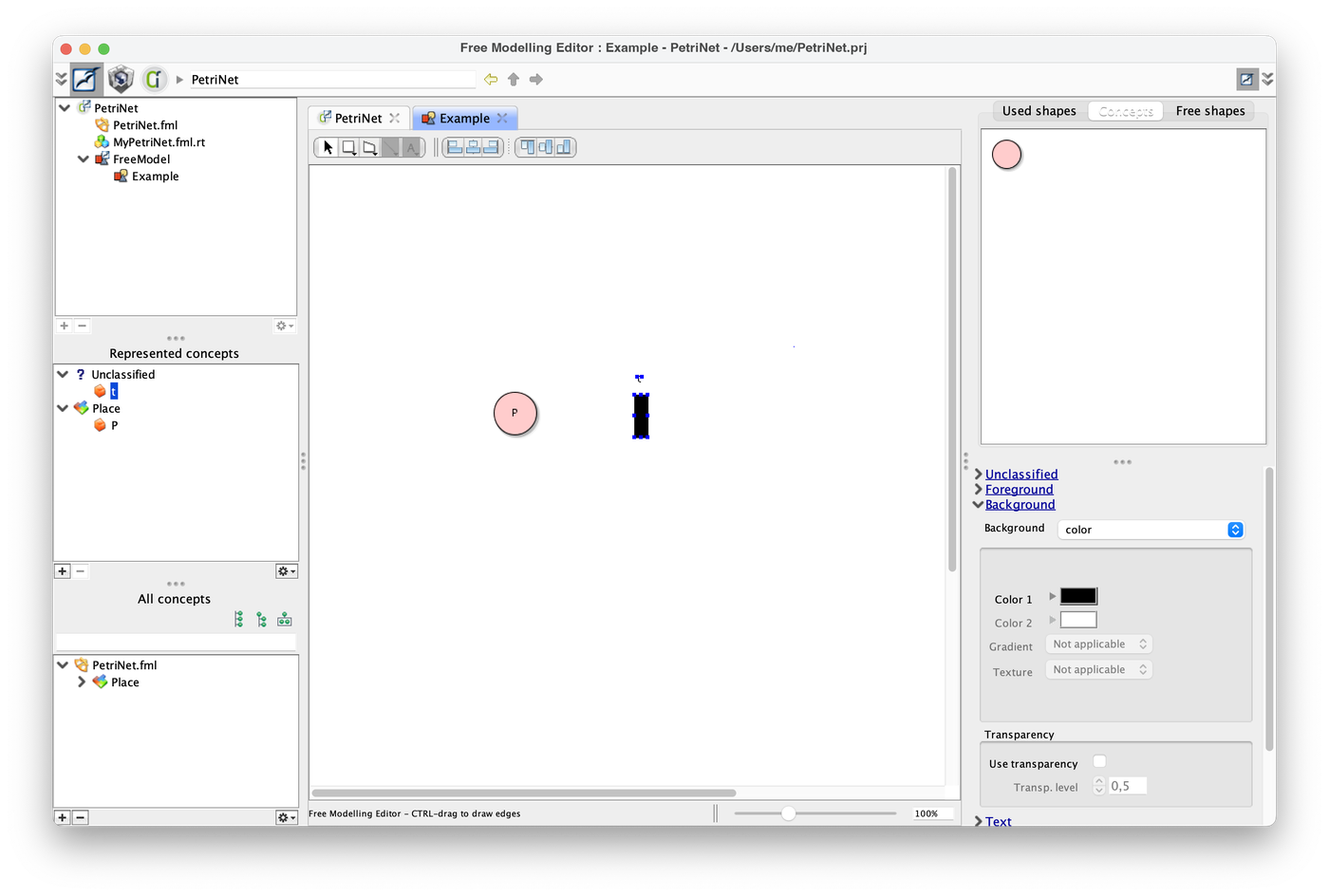
The transition shape, still Unclassified.
Conceptualise this shape too: right-click it, choose Create new concept and create the concept Transition.

The wizard, filled in for Transition.
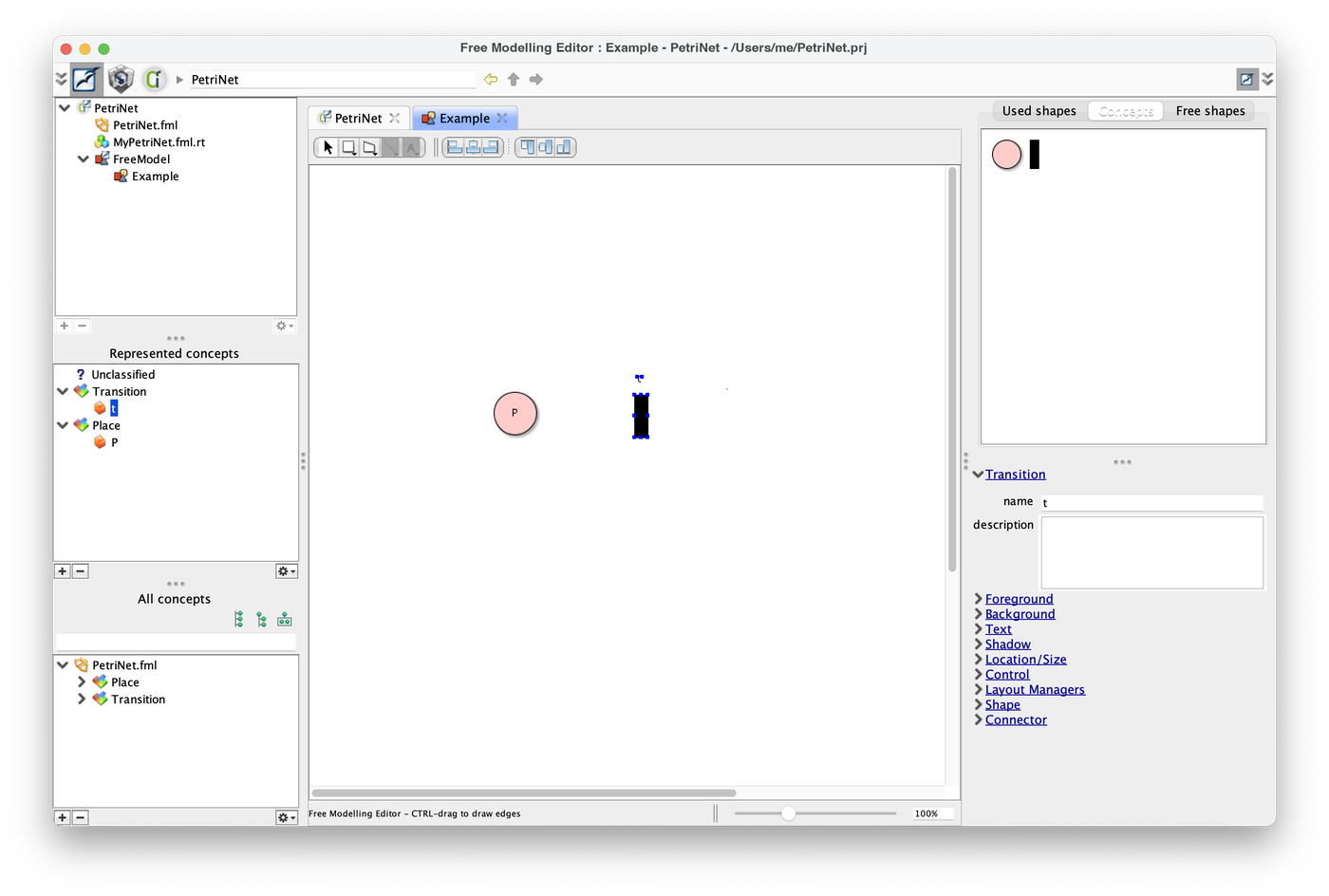
t is an instance of Transition, with a name property whose value is t.
The Concepts palette on the right now offers a Place and a Transition.
8. Add a second place
Switch to the Concepts palette and drop a new place on the diagram. Name it P2. Rename the first place from P to P1, either in the inspector or directly on the diagram.
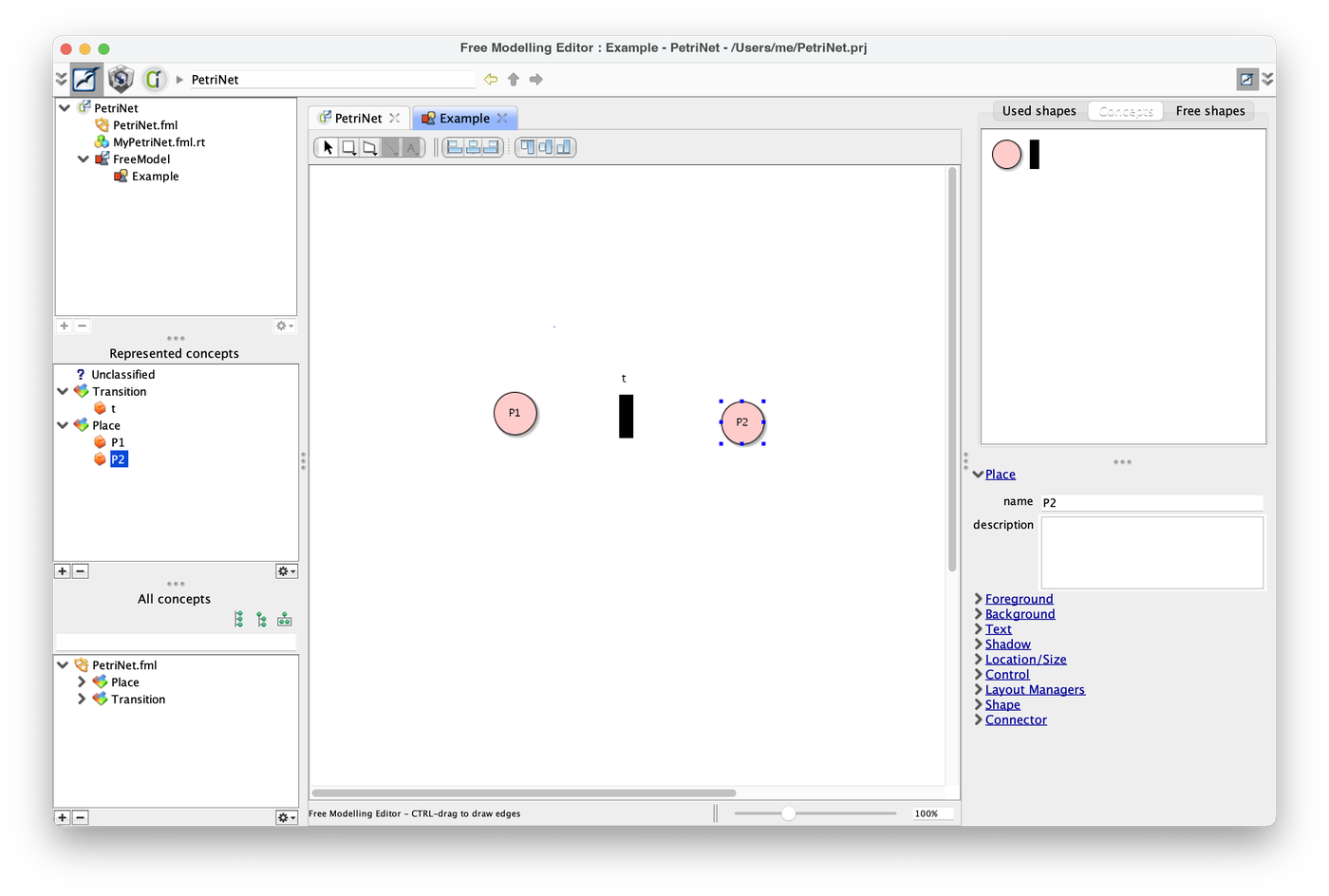
Two instances of Place and one Transition.
9. Draw an edge
Create an edge from P1 to t. Hold the CTRL key, press on P1, and with the button still down, release on t.
A line is drawn. You can inspect it, for instance to change its shape: choose curve and put an arrow at its end.
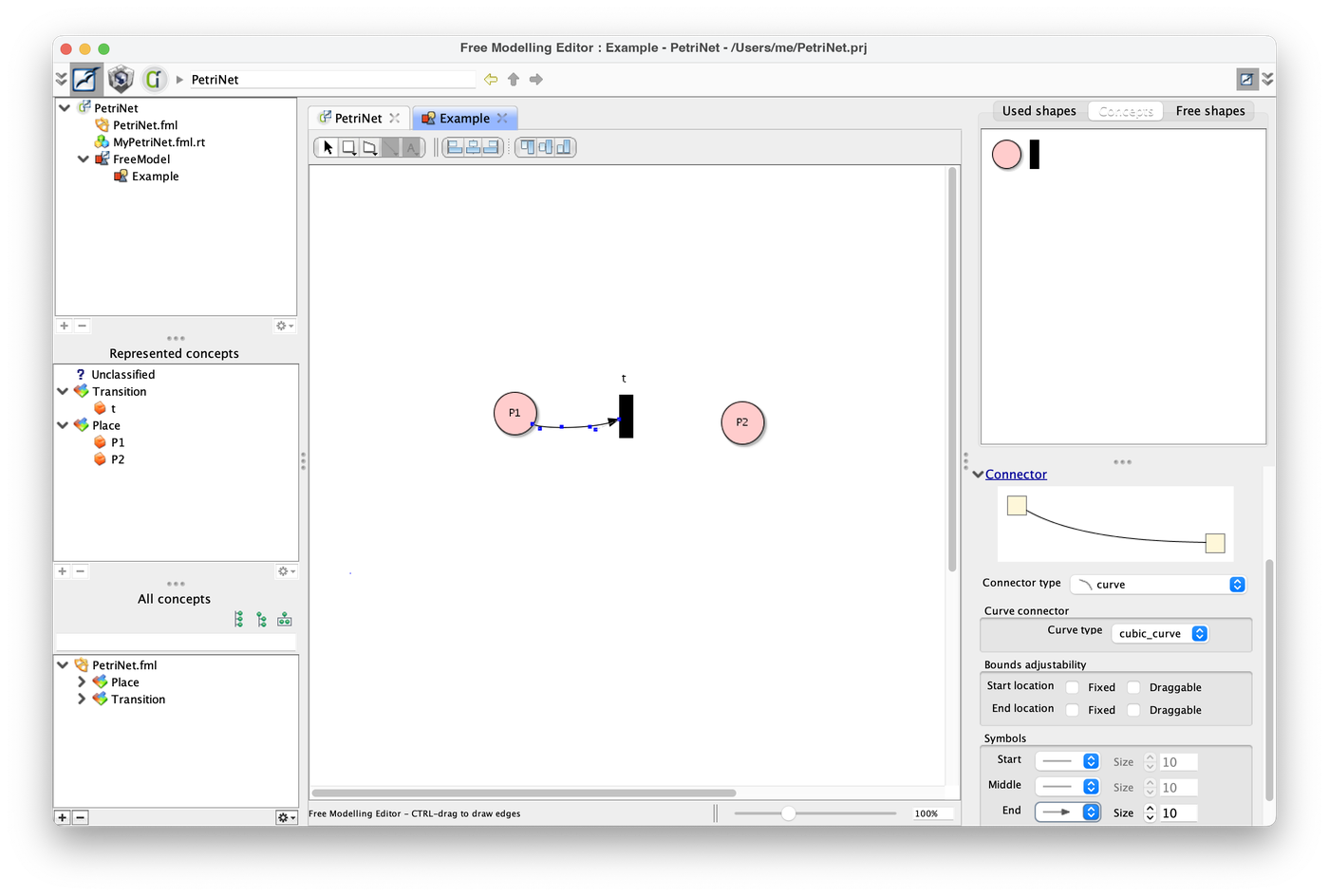
The new connector and its inspector.
Conceptualise it the same way: select the edge, right-click and choose Create new concept.

For a connector, the wizard offers a relational concept, with a source concept (Place) and a destination concept (Transition).
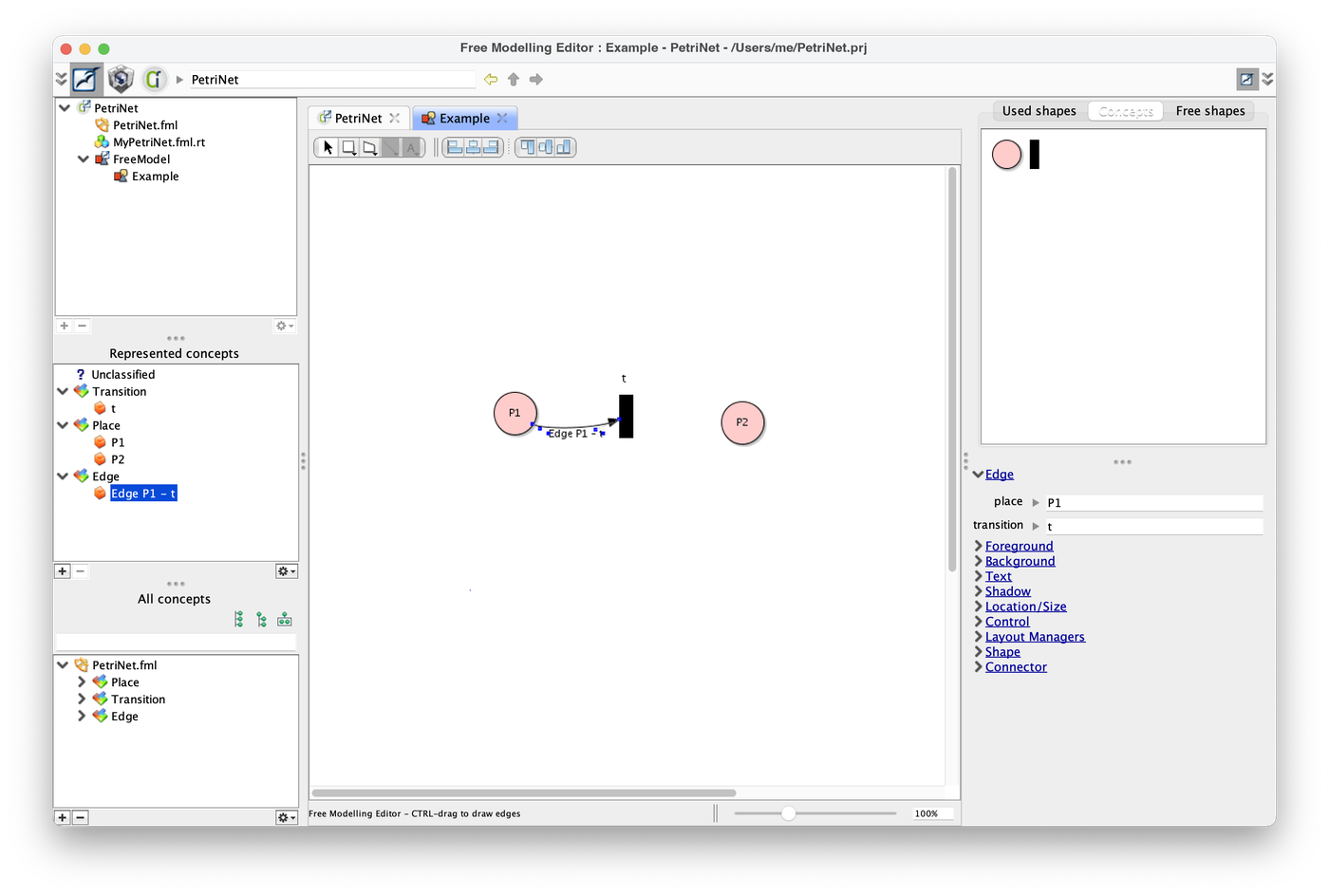
The edge has been created as an instance of the concept Edge.
10. Give the edge a weight
A Petri net edge has a weight. Select the edge, right-click and choose Create new property.
Create the property weight, of type Integer: the number of tokens needed for the edge to be triggered. Its default value is 1.

The Define new property wizard.
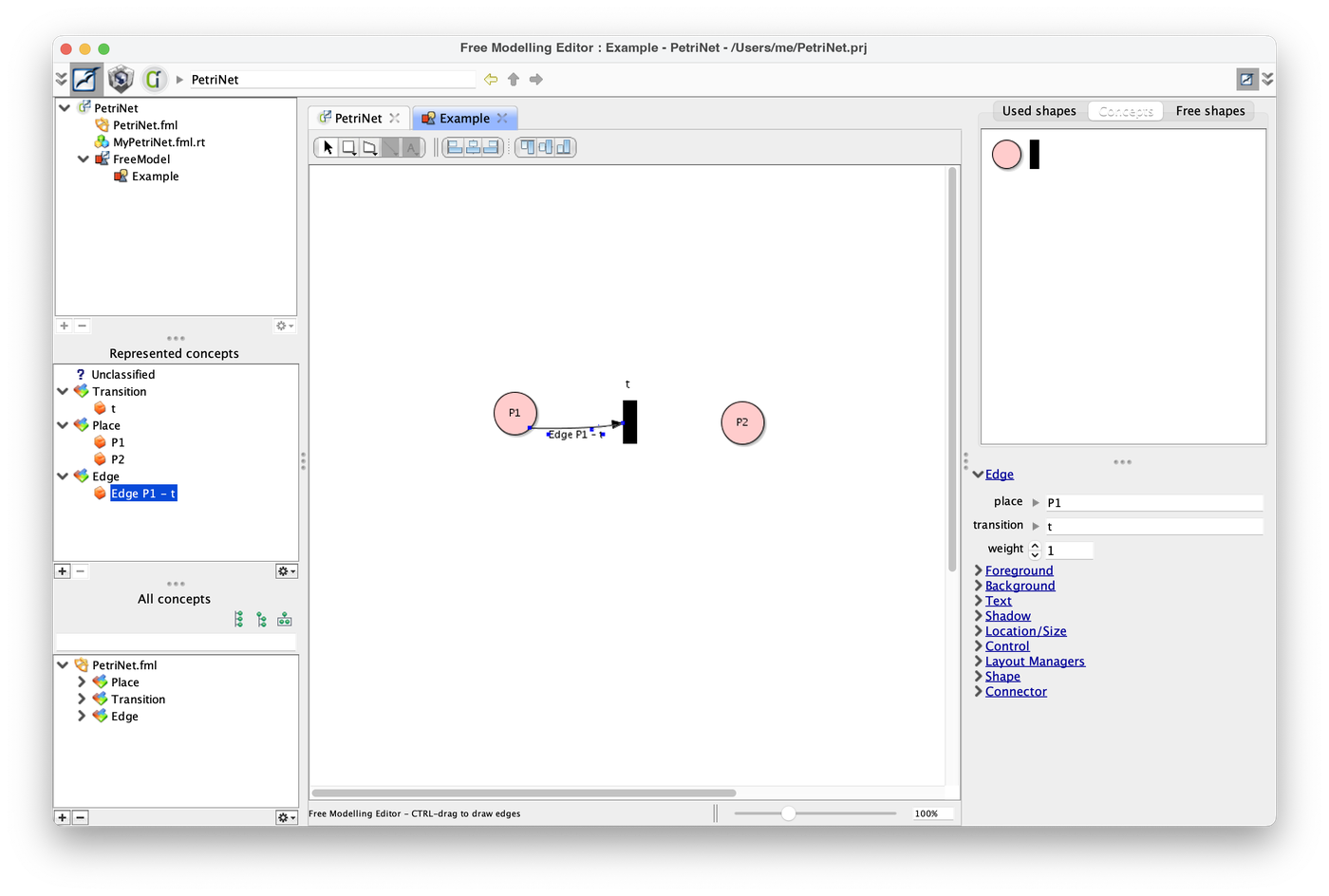
The edge instance now has a weight property.
11. Split edges into input and output edges
You now want an edge from the transition t to the place P2. But the concept Edge links a place to a transition, and this one goes the other way. Two kinds of edges are needed: rename Edge into InputEdge and create a new concept OutputEdge.
Select the concept Edge, right-click and choose Refactor > Rename concept.

The Rename concept wizard.
Then draw an edge from t to P2. First draw the shape, then promote it to a concept called OutputEdge.

Creating the concept OutputEdge, from a transition to a place.
Define the property weight on OutputEdge as well (right-click > Create new property). This time its meaning is the number of tokens created when the edge is activated.

The property weight on OutputEdge.
You get this screen:
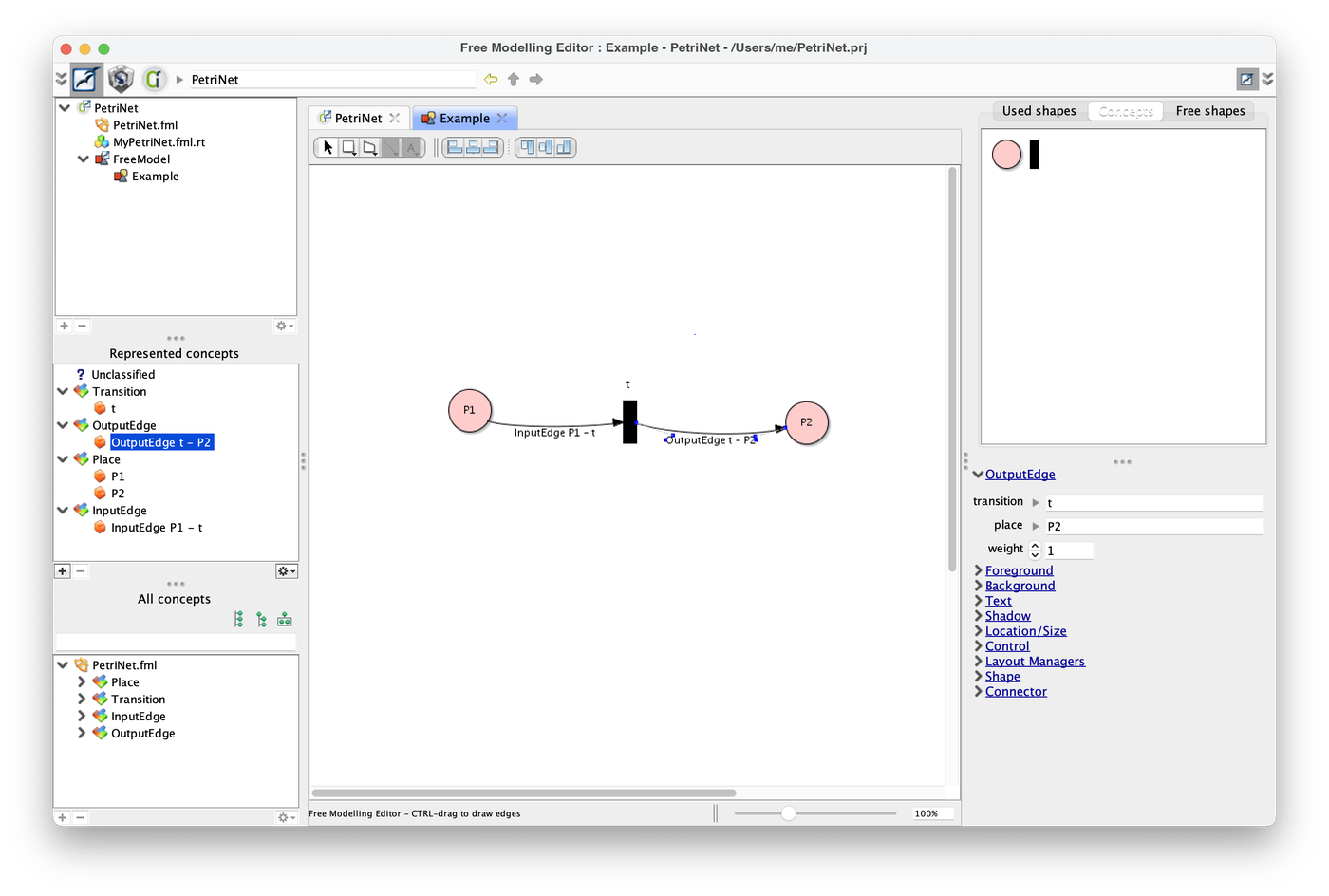
Both kinds of edges exist now, with their own concepts in All concepts.
12. Add the tokens
A place holds tokens. Select a place, right-click and choose Create new property. Name it tokens, type Integer, with a default value of 0.

The property tokens on Place.
13. Generalise the edges
InputEdge and OutputEdge have a lot in common. Select both (hold the command key for a multiple selection), right-click and choose Refactor > Generalize….
In the first page, name the common super concept Edge and keep it abstract. Click Next.

Step 1: the common super concept.
In the second page, choose the properties to move up to the super concept. Keep weight checked.

Step 2: the property weight is factored into Edge.
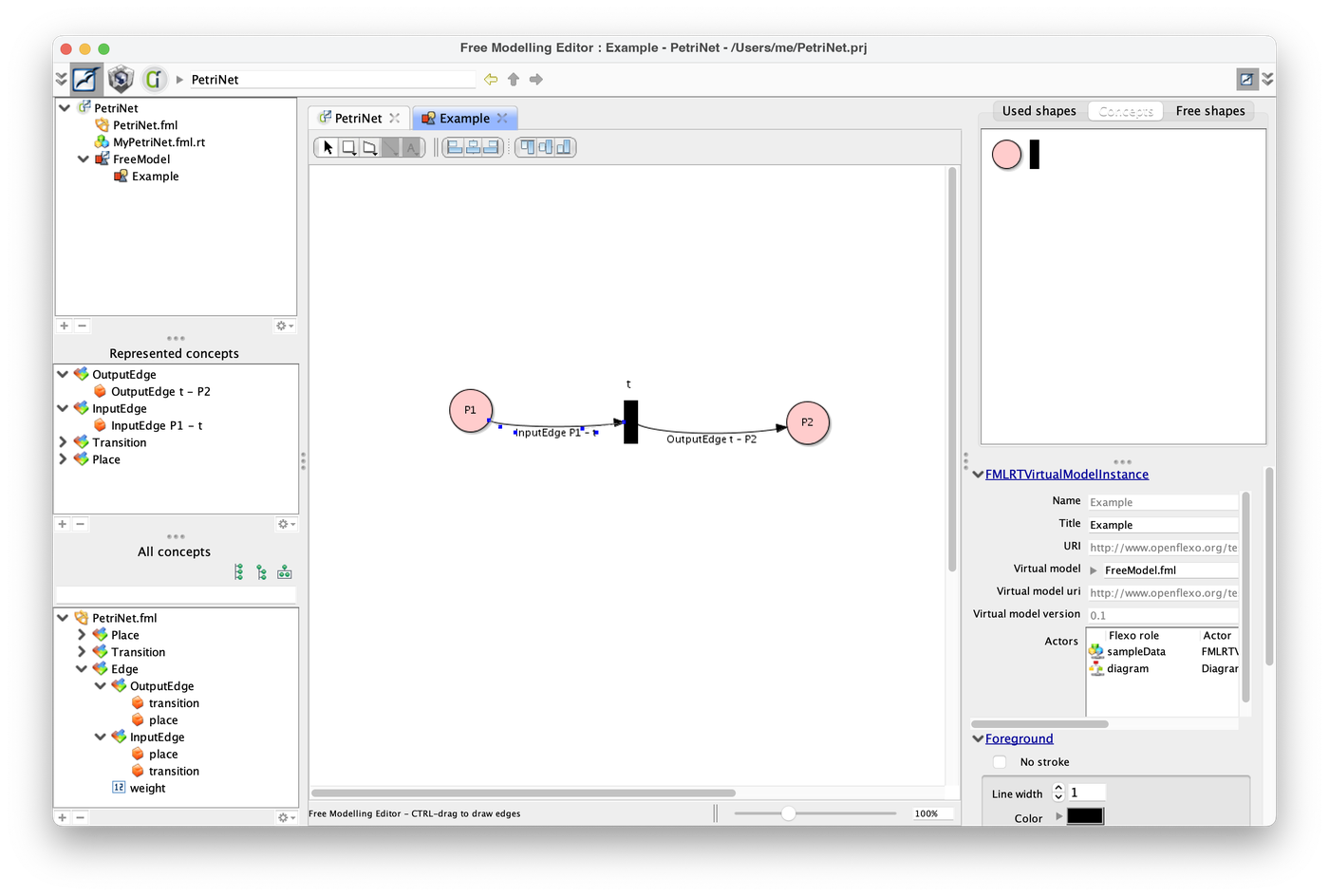
After the generalisation, InputEdge and OutputEdge inherit from Edge.
This ends a first modelling phase. You now have a Petri net model, an example of a Petri net, and a graphical representation of it.
14. Edit a new Petri net with the editor
You also have a graphical editor. Build a new Petri net to see it. Select FreeModel in the main browser, right-click and choose Instantiate Diagram Free Model. Name it Example2.

The wizard for the second example.
An empty diagram opens.
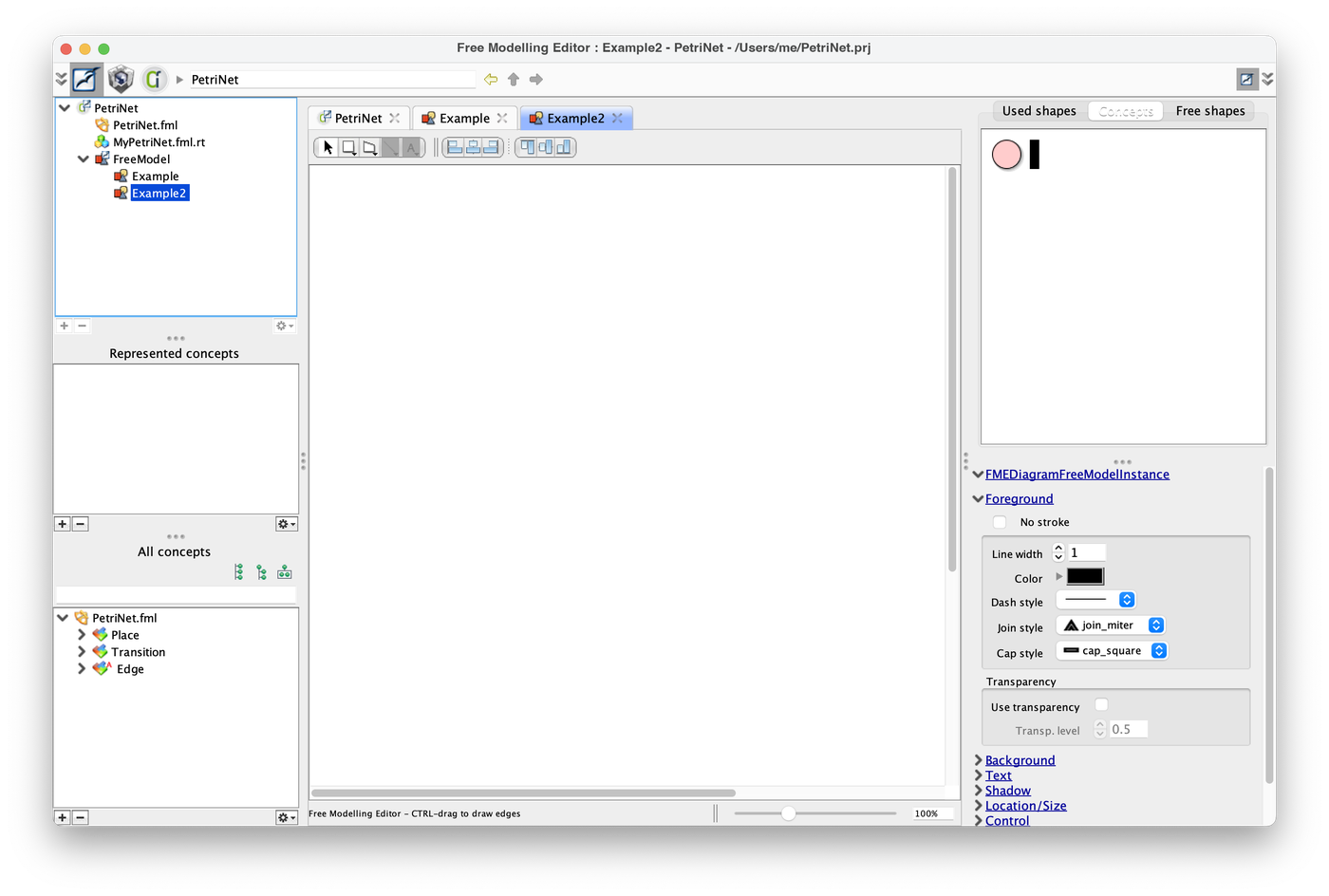
The empty diagram Example2.
Drag and drop elements from the Concepts palette. To draw links, hover a place: a small palette appears, from which you can pull a new shape and/or a link.
You get a new Petri net:
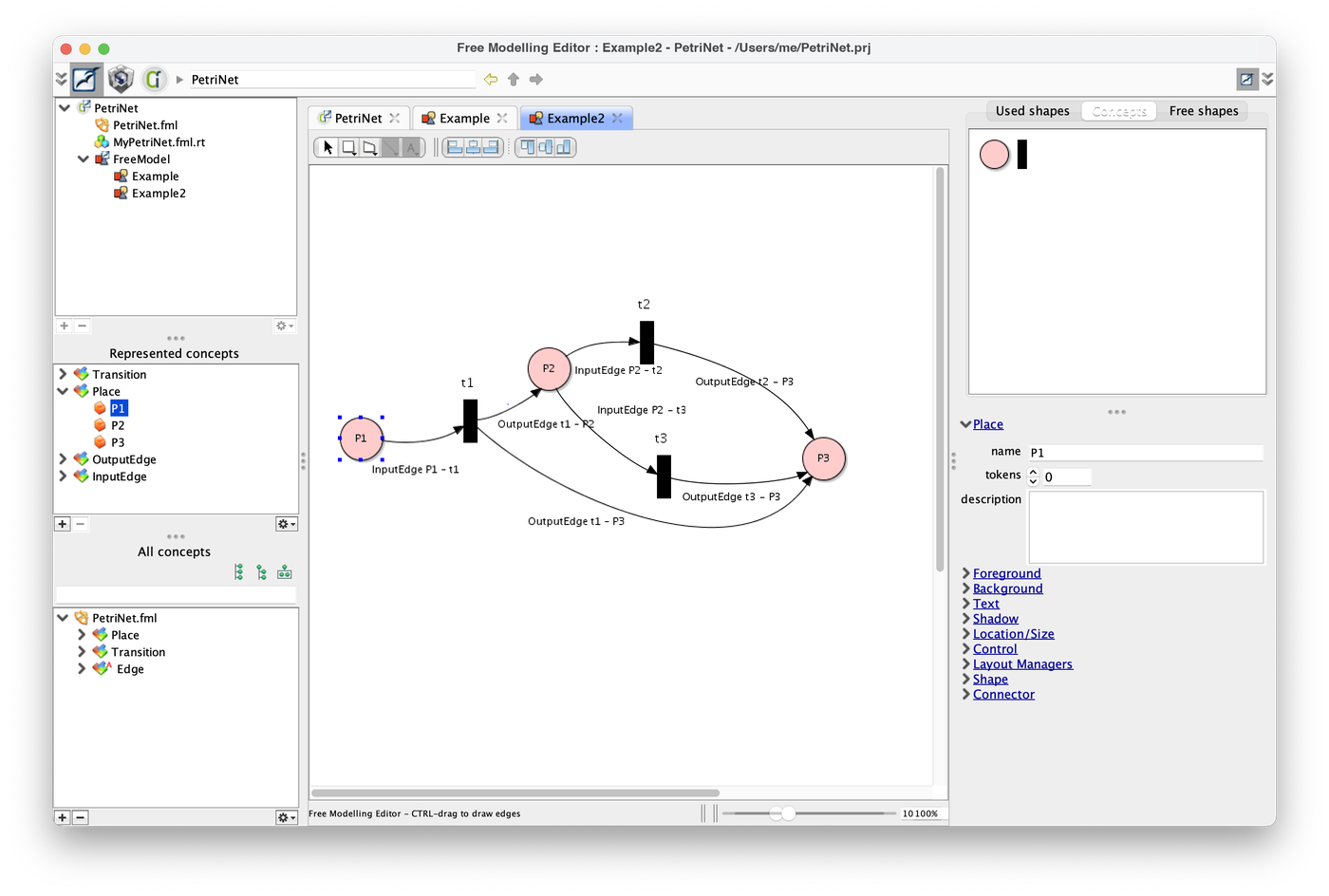
A Petri net edited in Example2. The labels still show the default text of each concept.
15. Open the Openflexo Modeller
You would now like to program the execution semantics of this model. Switch to the Openflexo Modeller module, with the third icon at the top left of the window.
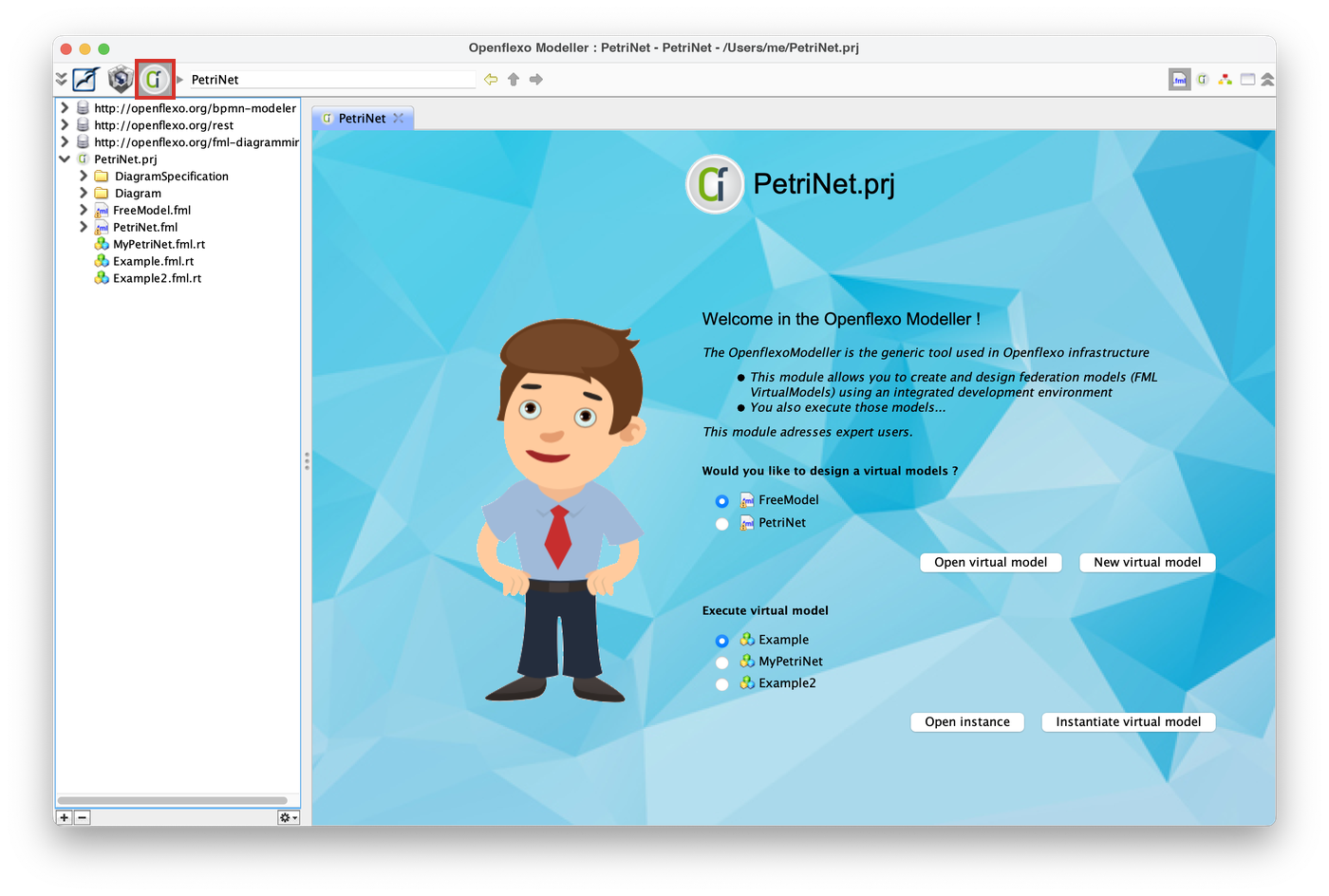
The red frame shows where to click to open the Modeller.
Open the model PetriNet.fml.
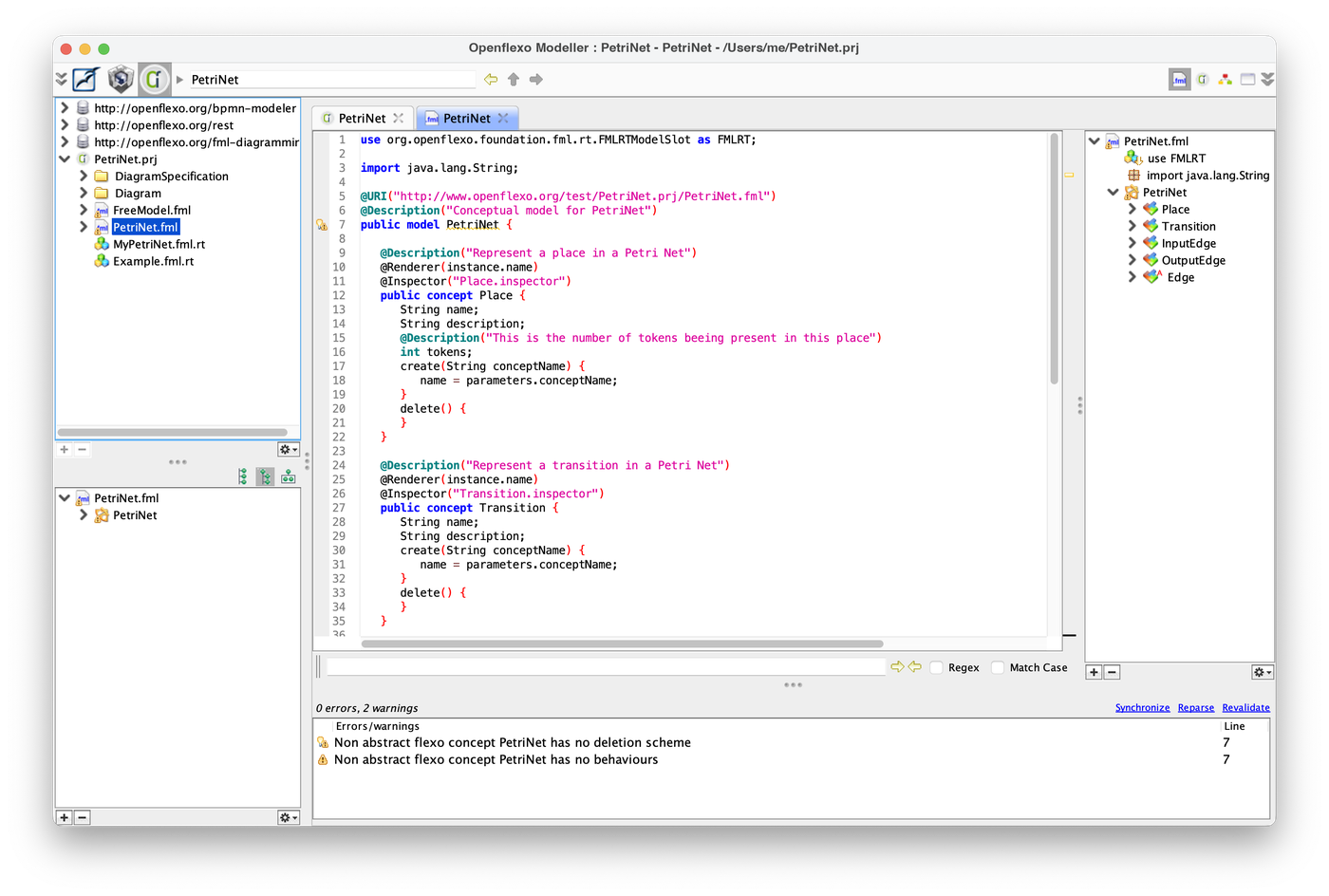
PetriNet.fml as generated by the Free Modelling Editor. The outline on the right lists the five concepts.
The editor has written the concepts for you in FML, the Flexo Modeling Language. You are going to add behaviours to it. The full file is part of the project PetriNet.prj.
16. Describe the behaviour of each concept
The semantics fits in a few methods. We go through the concepts in this order: Edge, InputEdge, OutputEdge and Transition.
Edge
An edge can be triggered. The super concept declares it as an abstract method, and each kind of edge gives it a meaning.
@Description("Common super concept for edges")
public abstract concept Edge {
    @Description("This is the weight of the edge which corresponds to the number of tokens beeing created when the edge is triggered")
    int weight = 1;

    // Abstract method used to trigger an edge
    abstract trigger();
}
InputEdge
An input edge is triggerable if its source place holds at least as many tokens as its weight. Triggering it removes that many tokens from the place.
@Inspector("Edge.inspector")
public concept InputEdge extends Edge {

    Place place with ConceptInstance(virtualModelInstance=container);
    Transition transition with ConceptInstance(virtualModelInstance=container);

    // This edge is triggerable if the number of tokens in source place exceed required weight
    boolean isTriggerable() {
        return place.tokens >= this.weight;
    }

    // Trigger that edge : remove required tokens from source place
    trigger() {
        place.tokens = place.tokens - this.weight;
    }
}
OutputEdge
An output edge adds tokens to its destination place.
@Inspector("OutputEdge.inspector")
public concept OutputEdge extends Edge {

    Transition transition with ConceptInstance(virtualModelInstance=container);
    Place place with ConceptInstance(virtualModelInstance=container);

    // Trigger that edge : add tokens to destination place
    trigger() {
        place.tokens = place.tokens + this.weight;
    }
}
Transition
A transition needs to know its incoming and outgoing edges. These two lists are computed on demand: they select the edges of the model that point to this transition.
A transition is fireable if all its input edges are triggerable. Firing it triggers every input edge, then every output edge.
@Description("Represent a transition in a Petri Net")
public concept Transition {

    String name;
    String description;

    List<InputEdge> inputEdges {
        List<InputEdge> get() {
            return select InputEdge from container where (selected.transition == this);
        }
    };
    List<OutputEdge> outputEdges {
        List<OutputEdge> get() {
            return select OutputEdge from container where (selected.transition == this);
        }
    };

    boolean isFireable() {
        for (InputEdge e : inputEdges) {
            if (!e.isTriggerable()) {
                return false;
            }
        }
        return true;
    }

    @Enable(this.isFireable())
    public fireTransition() {
        if (this.isFireable()) {
            for (InputEdge e : inputEdges) {
                e.trigger();
            }
            for (OutputEdge e : outputEdges) {
                e.trigger();
            }
        }
        else {
            log "This transition is not fireable";
        }
    }
}
The annotation @Enable(this.isFireable()) on fireTransition() enables the action only when the transition is fireable.
Make sure the places start empty by giving tokens its default value: int tokens = 0;.
17. Show the tokens and weights on the diagram
To make the net more visual, change the @Renderer of the concepts. The renderer is the text displayed for an instance in the diagram.
@Renderer(instance.tokens.toString)
public concept Place { ... }

@Renderer((this.weight != 1 ? this.weight.toString : ""))
public concept InputEdge extends Edge { ... }

@Renderer((this.weight != 1 ? this.weight.toString : ""))
public concept OutputEdge extends Edge { ... }
A place now shows its number of tokens, and an edge shows its weight only when it differs from 1.
18. Run the Petri net
Go back to the Free Modelling Editor and to the second diagram. You can now animate and execute the Petri net.
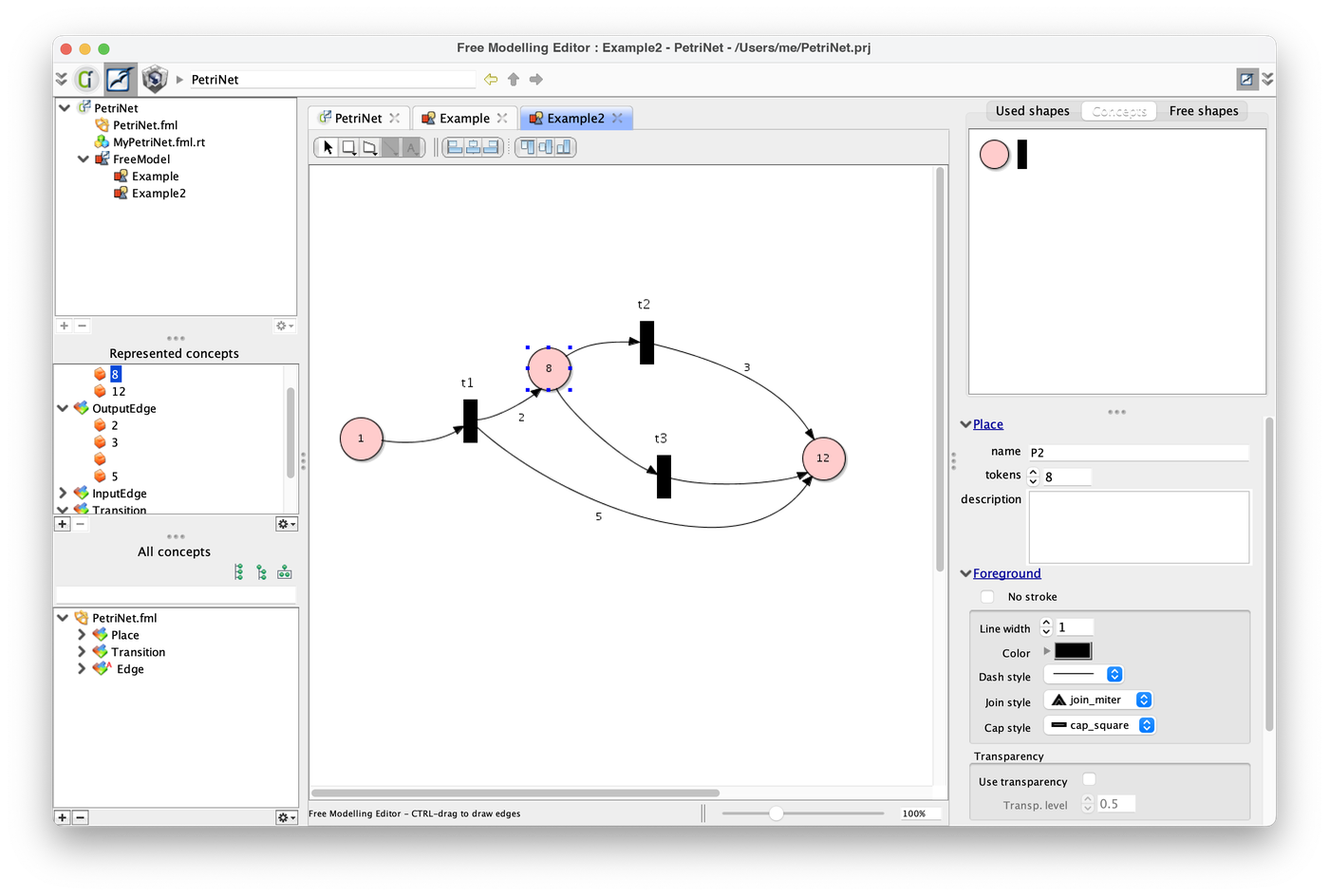
Example2 with token counts in the places and weights on the edges.
Right-click a transition and choose FireTransition. The entry is available only when the transition is fireable.

The context menu of a transition, with FireTransition.
The finished project, PetriNet.prj, is available in the tutorials-rc module of openflexo-integration-tests.